
Last updated: 19 November 2026
Open the SharePoint site in your browser, select Documents, click the three dots on the toolbar and choose Sync, then select Open Microsoft OneDrive when prompted. The library then appears in File Explorer under your organisation’s name, and you only need to do this once per computer.
Step by step: sync a SharePoint library to File Explorer
-
Open the SharePoint site in your browser
Use the link you were sent and sign in with your work Microsoft 365 account. Microsoft Edge or Google Chrome both work.
-
Select Documents
Choose Documents from the menu on the left-hand side of the site.
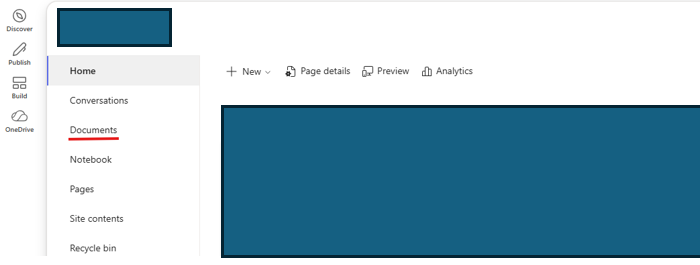
Documents sits in the left-hand menu of the SharePoint site. -
Click the three dots on the toolbar
Along the top of the document library, select the three dots (More commands). On a wide screen, Sync may already be showing on the toolbar, in which case skip to the next step.

The three dots (More commands) at the end of the toolbar. -
Select Sync
Choose Sync from the options that appear.

Sync appears in the menu under the three dots. -
Choose Open Microsoft OneDrive
Your browser asks whether the site can open OneDrive. Select Open Microsoft OneDrive. If OneDrive asks you to sign in, use the same work account.

Choose Open Microsoft OneDrive when your browser asks. -
Find your files in File Explorer
Open File Explorer. The library appears in the left-hand pane under your organisation’s name, next to a building icon. Files start to appear straight away, but a large library can take some time to list everything.
What the icons in File Explorer mean
| Icon | Meaning | Works offline? |
|---|---|---|
| Blue cloud | Online only. Takes no space and downloads when you open it. | No |
| Green tick | Downloaded because you opened it. Right-click and choose Free up space to send it back to the cloud. | Yes |
| Solid green circle | Marked Always keep on this device. Stays downloaded and uses disk space. | Yes |
| Padlock | Read only. You can open the file but not change it. | Varies |
Sync or Add shortcut to OneDrive?
Sync
Set up once on each computer. The library appears under your organisation’s name in File Explorer. Best when you work from one main PC.
Add shortcut to OneDrive
Adds the folder to your own OneDrive, so it follows you to every device you sign in to. Microsoft recommends shortcuts where they are available.
Our advice
Pick one method per library and stick to it, so you do not see the same folder twice. If you are unsure which your business uses, ask us.
How ABCOM helps
We set up SharePoint libraries, permissions and syncing for businesses across Sussex and the UK as part of our managed IT plans. If you are still deciding where files should live, read SharePoint or OneDrive: where should our business store files?
Quick answers
Why can’t I see the Sync button in SharePoint?
Sync is often tucked behind the three dots (More commands) at the end of the toolbar, especially on smaller screens. If it is not there either, your organisation may have switched syncing off for that library, so ask your IT team.
Do synced SharePoint files take up space on my computer?
Not until you open them. OneDrive Files On-Demand shows every file in File Explorer but only downloads one when you open it. A cloud icon means online only, a green tick means downloaded. Right-click and choose Free up space to make a file online only again.
Should I use Sync or Add shortcut to OneDrive?
Both put the files in File Explorer. Sync is set up per computer. Add shortcut to OneDrive follows you to every device you sign in to, and Microsoft recommends shortcuts where they are available. We suggest picking one method per library so you do not end up with two copies of the same folder.
If I delete a synced file, is it deleted for everyone?
Yes. A synced folder is the live SharePoint library, not a personal copy. Editing, moving or deleting a file in File Explorer changes it for all your colleagues. Deleted files go to the SharePoint site recycle bin, where they can normally be restored for 93 days.
How do I stop syncing a SharePoint library?
Select the OneDrive cloud icon in the taskbar, then the gear icon and Settings. On the Account tab, choose Stop sync next to the library. The files stay safe in SharePoint.
Does SharePoint sync work on a Mac?
Yes. Install the OneDrive app for Mac, sign in with your work account and follow the same steps in your browser. The library then appears in Finder instead of File Explorer.
What if nothing happens after I click Sync?
Check that OneDrive is running and signed in with your work account, then try again. The SharePoint message also offers a link to install the latest version of OneDrive. If you are asked “Which library do you want to sync?”, contact your IT team because the site needs setting up for the sync app.
Sync not behaving, or files missing from File Explorer? Book a free 20-minute call.
Related answers and guides
- SharePoint or OneDrive: where should our business store files?
- Can Copilot show confidential SharePoint files to the wrong people?
- Does Microsoft 365 back up our data?
- SharePoint made simple
- All ABCOM FAQs
Sources and further reading
Related questions
Want this sorted for you?
Talk to our Burgess Hill team about Microsoft 365 support. Free, friendly and no obligation.