
Last updated: 19 November 2026
In Outlook on the web and the new Outlook, open Settings (the gear icon), go to Accounts then Signatures, click New signature, type your details, choose it as the default for new messages and for replies and forwards, then Save. In classic Outlook for Windows, go to File, Options, Mail, Signatures, click New, build the signature, set the defaults and click OK twice.
Which Outlook do you have?
Outlook on the web
You open it in a browser at outlook.office.com or outlook.com. Follow the first set of steps.
New Outlook (Windows or Mac)
A gear icon sits at the top right and there is no File tab. It uses the same steps as the web version.
Classic Outlook (Windows)
There is a File tab at the top left of the ribbon. Follow the second set of steps.
Outlook on the web and new Outlook
Both share the same settings screen, and signatures created here follow you across the web and the new Outlook apps.
Settings › Accounts › Signatures
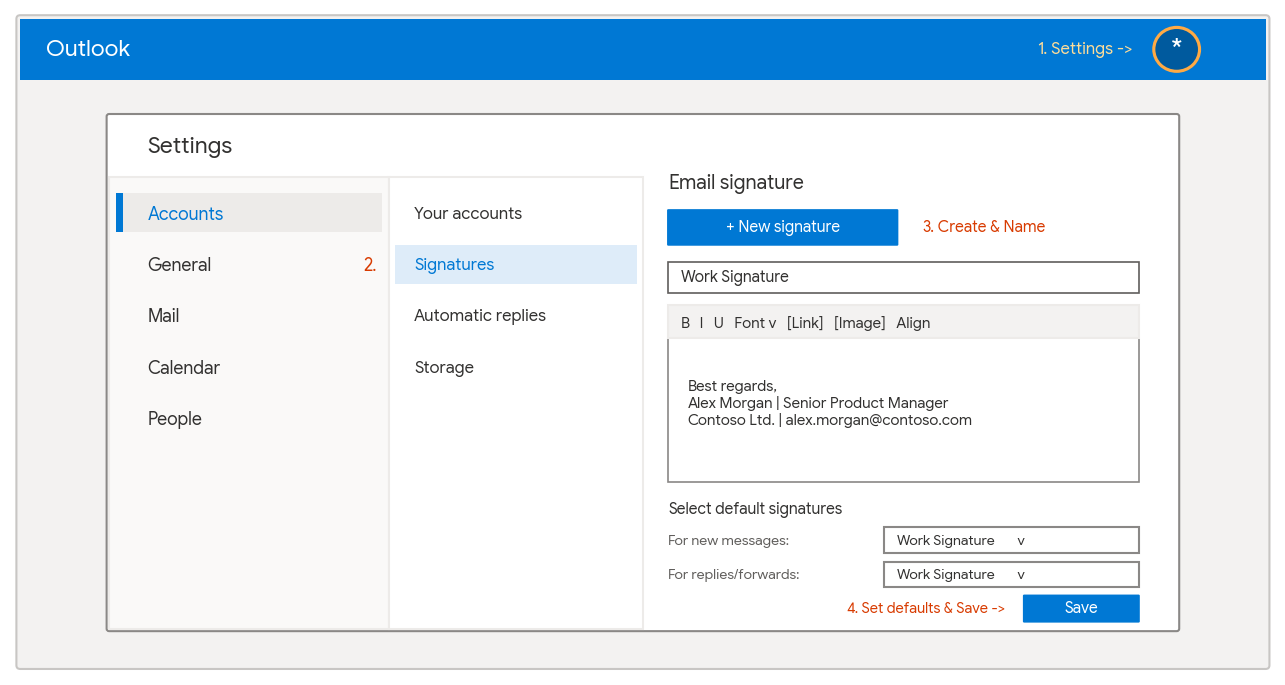
- Open Settings. Click the gear icon in the top right corner.
- Go to Signatures. Select Accounts, then Signatures. In some web views it is under Mail, then Compose and reply.
- Create and format. Pick the email account if you have more than one, click New signature, give it a clear name and type your details. Add fonts, links and a logo as needed.
- Set defaults and save. Under Select default signatures, choose your signature for New messages and for Replies/forwards, then click Save.
Classic Outlook for Windows
If your Outlook has a File tab, signatures are set through Outlook Options and are traditionally stored on that PC.
File › Options › Mail › Signatures
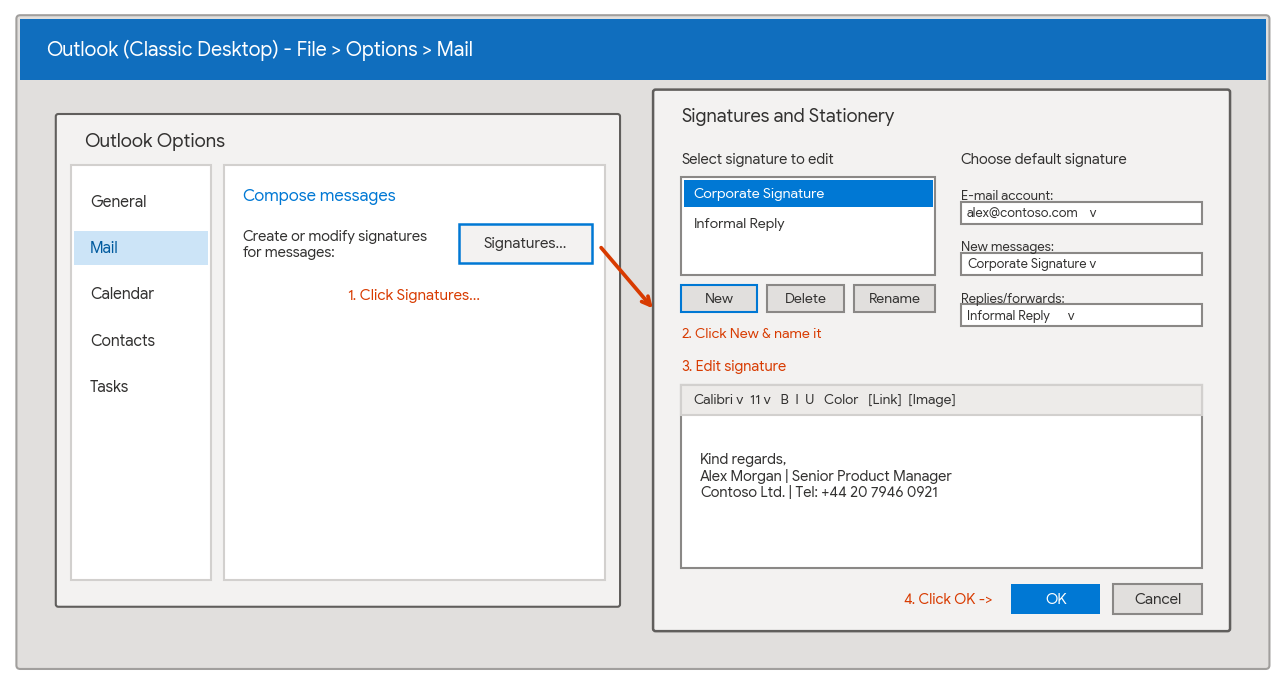
- Open Mail options. Click File at the top left, choose Options at the bottom of the left pane, then Mail.
- Open the signature editor. In the Compose messages section, click the Signatures button.
- Create and edit. Click New, type a name, click OK, then build your text, links or business card in the Edit signature box.
- Assign defaults and confirm. Under Choose default signature, select your email account, set the signature for New messages and for Replies/forwards, then click OK twice.
Quick comparison
| Feature | Outlook on the web and new Outlook | Classic Outlook for Windows |
|---|---|---|
| Menu path | Settings, Accounts, Signatures | File, Options, Mail, Signatures |
| Cloud syncing | Yes Syncs across the web and new Outlook apps | Not guaranteed Saved per computer profile, so expect to set it up on each PC |
| Multiple signatures | Supported. Insert a different one from the message toolbar | Supported. Right-click the signature area or use Insert, Signature |
Tip for images and logos: keep company logos compact, around 150 to 300 pixels wide, in PNG or JPEG format. Insert them with the picture icon in the signature editor rather than pasting from the clipboard, so they display reliably for recipients.
What to include in a business signature
- Your full name and job title
- Company name, phone number and website
- Registered company details where the law requires them on business emails
- A small logo, with no large banners or animated images
- A shorter version for replies and forwards
How ABCOM helps
Setting up one signature takes a couple of minutes. Keeping every signature in a company consistent is harder. We can set up centrally managed Microsoft 365 signatures so every member of staff gets the same branded layout on every device, with details pulled from their account. Talk to us and we will show you how.
Quick answers
Why does my signature not appear on replies?
Outlook has separate defaults for new messages and for replies and forwards. Open the signature settings and choose a signature in the Replies/forwards box, then save.
Do Outlook signatures sync between devices?
Signatures created in Outlook on the web or the new Outlook sync across those apps automatically. Classic Outlook for Windows traditionally stores signatures on the individual PC, so you may need to set them up again on another computer. The Outlook mobile app has its own signature setting.
Can I have more than one signature?
Yes. Create as many as you need, set one as the default, and switch on any message from the Signature button on the message toolbar or the Insert menu.
Can everyone in our company have the same signature?
Yes. Rather than asking each person to build their own, signatures can be managed centrally in Microsoft 365 so the layout and branding stay consistent. ABCOM can set this up for you.
Want consistent, branded signatures for the whole team? We can manage them centrally in Microsoft 365.
Related answers and guides
- What is Exclaimer and central email signatures?
- Send emails on behalf of another user in Outlook
- Open a shared mailbox in Outlook for Mac
- Teams Meeting button missing in Outlook
- All ABCOM FAQs
Sources and further reading
Related questions
Want this sorted for you?
Talk to our Burgess Hill team about Microsoft 365 support. Free, friendly and no obligation.