
Quick fix: 5 steps that solve most cases
- Close Outlook and Teams completely.
- Open Teams first, sign in, then reopen Outlook normally (not “Run as administrator”).
- In Outlook go to File → Options → Add-ins. If “Microsoft Teams Meeting Add-in for Microsoft Office” is under Disabled, choose COM Add-ins → Go and tick it.
- Still missing? Reinstall the Teams desktop app while signed in as a local administrator.
- Using the new Outlook? It doesn’t use the add-in. Teams meetings are built in via the “Teams meeting” toggle when you create an event.
Quick symptoms checklist
You may be experiencing this issue if:
- ✅ The Teams Meeting button is missing from the Outlook ribbon
- ✅ You can open Microsoft Teams, but can’t schedule Teams meetings in Outlook
- ✅ Teams works in the browser, but not in the Outlook desktop app
- ✅ The issue appeared after a Windows, Office, or Teams update
- ✅ The problem affects one user or a handful of users, not everyone
- ✅ Restarting Outlook alone doesn’t fix the problem
If any of these apply, the steps below usually resolve the issue.
Common causes and how to fix them (Windows users)
If you’re using Microsoft Teams with Outlook on Windows and the Teams Meeting add-in is missing, you’re not alone. We regularly see this issue affecting business users after installs, updates, or device changes.
The good news? In most cases, it’s quick to fix.
Below are the most common reasons the Microsoft Teams Meeting add-in doesn’t appear in Outlook, along with the steps to resolve them.
1. Teams must be installed by a Windows administrator
One of the most common causes is permissions.
The Teams Outlook add-in is a COM add-in, which means it writes to the Windows registry. Only users with local administrator rights can install it correctly.
What to check
-
Was Microsoft Teams installed by a user without admin rights?
-
Is this a shared or work-managed computer?
How to fix
-
Log in as a local administrator
-
Install (or reinstall) the Teams desktop app
-
The user can then sign in normally and use Outlook
2. Don’t run Outlook as an administrator
It sounds counterintuitive, but running Outlook as admin can actually prevent COM add-ins from loading correctly.
What to do
-
Close Outlook
-
Re-open it normally (no “Run as administrator”)
-
Check again for the Teams Meeting button
3. Restart Teams and Outlook in the correct order
Sometimes the add-in is installed but not fully registered.
Follow this order carefully:
-
Download and install the Teams desktop app
-
Open Teams and sign in once
-
Close Teams, then reopen it
-
Close Outlook (if open)
-
Reopen Outlook after Teams is running
This ensures Outlook can detect the add-in correctly.
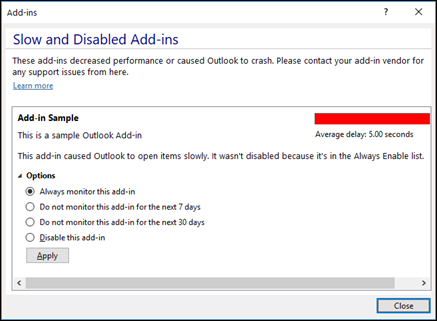
4. Check that the Teams add-in isn’t disabled in Outlook
If the add-in still doesn’t appear, it may be disabled by Outlook.
How to check
-
Open Outlook
-
Go to File → Options → Add-ins
-
Look under Active Application Add-ins
You should see:
Microsoft Teams Meeting Add-in for Microsoft Office
If it’s listed under Disabled Application Add-ins:
-
Select COM Add-ins from the Manage dropdown
-
Click Go
-
Tick Microsoft Teams Meeting Add-in
-
Click OK and restart Outlook


Still not working?
If the add-in still doesn’t appear after these steps, it usually points to:
-
A corrupted Office or Teams install
-
Group Policy restrictions
-
Microsoft 365 update conflicts
-
Device management or security controls
At that stage, guessing wastes time — it needs a proper diagnosis.
Need help fixing this properly?
If you’re seeing this issue across multiple users, or it keeps coming back, it’s often a sign of a wider Microsoft 365 or device setup issue.
We help organisations:
-
Fix recurring Teams & Outlook integration issues
-
Standardise Microsoft 365 deployments
-
Reduce user disruption caused by updates and permissions problems
👉 If you’d like us to take a look, get in touch — we’re happy to advise.
Also, please find a handy printable PDF guide below:
Still not working, or happening across several PCs? It usually points to a damaged Office install, Group Policy or device management settings. Our Microsoft 365 team can fix it remotely, often in one call.
Related pages
Want this looked after for you?
ABCOM has supported Sussex businesses and charities since 1996 and is an NCSC Assured Service Provider – Cyber Advisor (Cyber Essentials). Talk to a real person about your IT.
Also read
How ABCOM can help
Talk to a real person at our Burgess Hill office. We are an NCSC Assured Service Provider and have supported Sussex businesses since 1996.